AI Translator: Voice & Screen
- 4.2
- Rating
- 1.00M
- Installs
- Free
- Price

 Analysis by App-foxy
When I look at a translation app, I care less about how many languages it claims to handle and more about whether it helps me at the exact moment I am stuck. AI Translator: Voice & Screen, developed by HKL Game Studio, is built around that moment: translating spoken words, written text, and what appears on a phone screen. I found the screen side especially interesting because it can fit into situations where copying text is awkward or impossible.
This is a free productivity app for Android, rated for Everyone, and its current version is 102_20260402. It requires Android 8.0 or later. The app has reached over 500 thousand installs and holds a 4.3 average from around one thousand ratings, which suggests that its basic idea is connecting with a fairly broad audience. In-app purchases range from $1.99 to $59.99 per item, so I would treat the free download as a chance to test the workflow rather than assuming every use is unlimited.
Why screen translation is the capability that matters most
Voice translation is familiar territory. Text translation is familiar too. The more useful distinction here is the attempt to make translation available directly from the screen. That changes the task from “find the words, select them, copy them, switch apps, paste them, and return” to something closer to “look at the content and translate it where you are.” In everyday use, that reduction in steps can matter more than a long list of language-related features.
You May Also Like

 Blood Strike: 2.5 Anniversary
Blood Strike’s Loadouts Turn Every Drop Into a Tactical Gamble
A close look at Blood Strike’s custom loadouts: how fast access to signature weapons reshapes its battle royale rhythm, rewards preparation, and narrows the gap between fights.

 Pandora - Music & Podcasts
Pandora’s Music Is Easy to Start, but Harder to Recover
Pandora’s strength is its low-effort path from a seed to a station. Its weak spot is how much confidence it asks you to place in connection, setup, and quiet recovery.

 8 Ball Pool
 Is Built on Rivalries, Rematches, and Routine
A close look at the rivalries, rematches, shared routines, and unanswered safety questions that turn a quick pool match into a persistent mobile community.

 Samsung Music
’s Quiet Strength Is Playing What You Already Own
Its reach comes less from spectacle than from dependable access to a personal library. That simplicity is both the app’s strongest retention engine and its ceiling.

 AccuWeather: Weather Radar
AccuWeather Review: A Quick, Clear Forecast for Everyday Decisions
For everyday plans, the best forecast is the one you can understand quickly. AccuWeather makes rain timing, radar, and local conditions easy to act on, with a few trade-offs.

 Hill Climb Racing
Why Hill Climb Racing Still Turns Crashes Into One More Run
A tiny car, a bumpy hill and one more upgrade: Hill Climb Racing keeps resurfacing because its simple chaos makes every near-miss feel personal.
More From Our News Desk



I can imagine using it with a message inside another app, a menu in a travel service, a product page, or a game interface that does not offer convenient text selection. The value is not that every translation becomes perfect. The value is that the app can help me get the meaning of something that would otherwise slow me down or force me to type unfamiliar characters manually.
The strongest reason to try this app is the screen workflow, not simply the word “AI.” If I only need to translate short passages that I can easily copy, a conventional translation tool may be just as convenient. If the text is trapped inside an image, a locked interface, or a visual layout, screen translation has a more practical advantage.
What the three translation modes mean in real life
Voice translation is the natural choice for a conversation, a quick question, or a spoken instruction. I would use it when the other person and I need help understanding one another without repeatedly typing. It is most useful when the exchange is short and focused. For a long, complicated discussion, I would still slow down and confirm important details rather than trusting an instant result without checking the context.
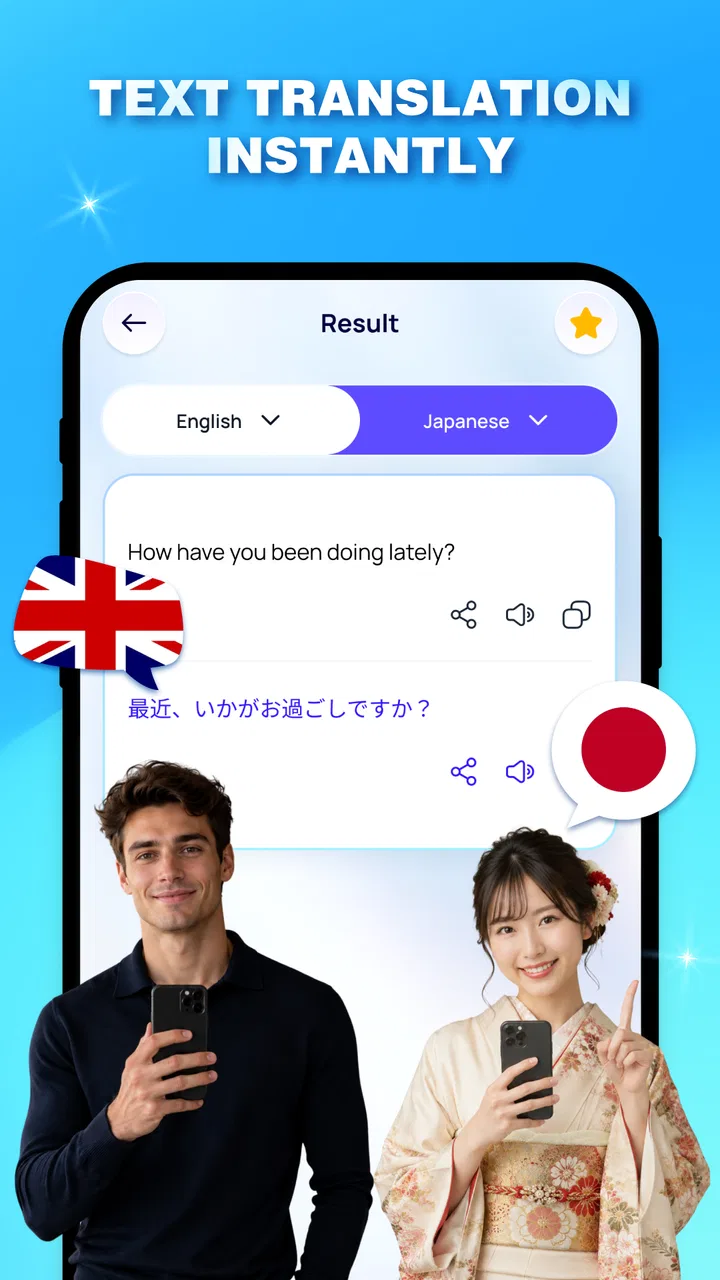
Text translation suits the material I can enter or provide directly. That makes it a better fit for an address, a short email, a label, or a sentence I want to understand carefully. I like having this mode alongside screen translation because it gives me a fallback: if the screen result is unclear, I can isolate the wording and examine it more deliberately.
Screen translation is the mode that can save the most friction. It is particularly relevant when I am reading content in an app that was not designed for multilingual use. Instead of treating translation as a separate destination, it makes it part of the reading process. That sounds like a small difference, but it affects whether I use the tool immediately or postpone the task until later.
How I would use it during an ordinary day
Imagine I am arranging a trip and receive a confirmation screen in a language I do not read. The booking app may display the information as a visual page rather than editable text. I could use the screen mode to understand the departure time, location, or instructions, then switch to text translation for a specific phrase that needs closer attention. That combination is more realistic than expecting one mode to solve every part of the situation.
Another practical example is shopping through an overseas marketplace. Product descriptions often mix images, buttons, specifications, and small labels. Copying one sentence at a time is tedious, while translating the visible screen can give me a quick overview. I would still inspect measurements, delivery conditions, and return wording carefully, because a rough understanding is not the same as a reliable purchase decision.
For voice use, I would keep my sentences short and speak one idea at a time. That is not a special trick for this app alone; it is a sensible way to reduce ambiguity in any instant translator. Names, addresses, slang, jokes, and technical terms deserve extra caution. If the result sounds strangely formal or changes the meaning, I would rephrase the original instead of repeating the same sentence louder or faster.
A workflow that avoids the most common mistakes
My preferred workflow would be to start with the quickest available mode, then verify only the important parts. For a screen full of unfamiliar writing, I would first seek the overall meaning. After that, I would focus on dates, numbers, names, prices, and instructions. Those details are where a small translation error can create a much larger problem.
When using voice translation in a real conversation, I would show the translated result to the other person when possible and ask for confirmation if the subject is sensitive. This is especially important for medical information, legal wording, immigration instructions, or financial commitments. An AI translator can be a useful bridge, but I would not make it the final authority in a high-consequence situation.
A less obvious benefit of this approach is that it prevents me from treating a full-screen result as equally reliable in every area. A heading may be easy to understand while a small disclaimer or culturally specific phrase remains ambiguous. Looking at the translation as a first pass, then checking the parts that affect my decision, is more efficient than either trusting it blindly or refusing to use it at all.
Where the experience may feel less effortless
The app’s promise is immediate translation, but “instant” does not remove the usual challenges of language technology. Speech can be difficult when several people talk at once, when there is background noise, or when someone uses an accent or local expression. A screen can also contain decorative text, unusual formatting, or words whose meaning depends heavily on the surrounding page.
I would also expect the screen workflow to require a little adjustment. Any tool that works with what is displayed has to fit into the way I navigate between apps and content. The first session may involve learning when to use screen translation instead of text input. That learning curve is small compared with manually retyping everything, but it is still part of the experience.
The purchase structure deserves attention as well. The app is free to install, but optional items are listed from $1.99 to $59.99. I would check what the free experience allows before relying on it for frequent travel or daily work. Someone who translates only occasionally may be perfectly satisfied without paying. A heavy user should consider the cost of repeated access and decide whether it remains worthwhile beside familiar alternatives.
There is also a quality trade-off between speed and precision. Instant translation is valuable because it keeps me moving, but it may not preserve tone, implied meaning, or specialist vocabulary as well as a careful human translation. I would use AI Translator: Voice & Screen for orientation, quick conversations, and routine reading, while choosing a more deliberate service or human help for documents where every word matters.
How it compares with ordinary translation habits
The usual alternative is to open a general translation service, select the input method, and move information between apps. That approach can be excellent when I have clean text and want to edit the source before translating it. It is often easier to compare versions or correct a single sentence there. AI Translator: Voice & Screen has its clearest edge when the content is already on the screen or when speaking is faster than typing.
Camera-based translation tools are another comparison point. They can be helpful for signs, menus, and printed pages, but screen translation is aimed at digital content already visible on the phone. I would choose this app for a mobile message or interface and a camera translator for a physical poster or restaurant menu. Neither approach replaces the other; the better choice depends on where the words are located.
Built-in translation features inside individual apps can be more seamless when they exist. They may understand that app’s layout and offer translation without leaving the page. The advantage of a dedicated tool is broader usefulness across different content sources. That flexibility is the reason I would keep it available even if one of my regular apps already has its own language option.
For professional translation, specialist software remains the better choice. It may offer terminology control, document handling, revision tools, or a more dependable process for published material. This app is aimed at removing everyday language obstacles, not replacing an editor or translator. Knowing that boundary makes the recommendation more honest and prevents disappointment.
Who benefits most from this particular design
I think the best audience is people who regularly encounter foreign-language content on a phone. Travelers can use it to understand digital confirmations and local services. International students may find the screen mode useful while navigating unfamiliar portals. Families with relatives who speak another language can use voice translation for short exchanges. Casual shoppers, readers, and mobile gamers may also appreciate not having to copy text from every interface.
It is less suitable for someone who needs certified translations, polished business writing, or dependable interpretation during a serious appointment. I would also hesitate to recommend it as the only tool for a user who rarely encounters another language and already has a trusted text translator installed. In that case, the extra screen and voice options may not justify learning another workflow or considering in-app purchases.
Accessibility is another reason the concept may appeal to some users. Reading unfamiliar writing can be tiring, and switching between apps repeatedly adds effort. Having voice, text, and screen approaches in one productivity app gives me more than one way to reach the same goal. If typing is inconvenient, voice may help; if listening is impractical, screen or text may be better.
Small habits that make the results more useful
- Translate the surrounding context, not just one isolated word. A short phrase can change meaning depending on whether it appears in a menu, a warning, a message, or a product description.
- For spoken exchanges, use short sentences and pause between ideas. This makes it easier to notice when the result does not match what you intended.
- Check names, numbers, times, and instructions separately before acting on them. These details deserve more attention than a general sentence whose meaning is obvious.
- Keep the original wording available when a translation seems unusual. Comparing the source and result is often faster than trying to guess whether the app misunderstood the context.
These habits are not workarounds that defeat the purpose of instant translation. They are what make a fast tool dependable enough for ordinary decisions. The app can remove the first barrier, while I remain responsible for checking anything important.
My recommendation after focusing on the screen experience
AI Translator: Voice & Screen is most convincing when I treat it as a quick access layer between me and foreign-language content on my phone. Its combination of voice, text, and screen translation gives it a wider everyday role than a tool limited to typed sentences. The screen capability, in particular, can turn a frustrating copy-and-paste task into a much shorter reading step.
HKL Game Studio has placed the app in the productivity space rather than presenting it as a specialist language-learning product, and that feels appropriate. I would not use it to study grammar systematically or to prepare an official translation. I would use it to keep moving: understand a message, inspect a digital menu, follow a foreign-language interface, or get through a brief conversation.
The free entry point makes it easy to test on an Android device running version 8.0 or newer, while the optional purchases mean frequent users should pay attention to how their own usage develops. My advice is to try the screen workflow first, because that is where the app separates itself most clearly from a standard text box. If your language problems usually happen inside apps rather than on paper, you are more likely to notice its value quickly.
My final view is positive but practical. I would recommend it to travelers, multilingual households, students, and anyone who often meets foreign text in mobile apps. I would skip it as a primary solution for legal, medical, financial, or publication-ready translation. Used as a fast first pass—with a careful check of important details—it offers a genuinely useful way to reduce the distance between seeing or hearing another language and understanding what to do next.
FAQs for AI Translator: Voice & Screen
01What is AI Translator: Voice & Screen, and what can it translate?
AI Translator: Voice & Screen is designed to help users understand spoken conversations, written text, and content displayed on their phone. Depending on the available tools and language support, you can use it for voice translation, text translation, camera-based translation, or translating text directly from the screen. It can be useful while traveling, studying, chatting, or reading unfamiliar content.
02Does AI Translator: Voice & Screen work offline?
Offline availability depends on the specific translation feature and language pack supported by the app. Some functions may require an internet connection because they rely on cloud-based artificial intelligence and online translation services. Before traveling or using the app without mobile data, check its settings and download any available offline language resources. Accuracy and available features may also be more limited offline.
03How accurate are the voice and screen translations?
The app can provide helpful translations for everyday phrases, menus, messages, and general conversations, but results are not guaranteed to be perfect. Accuracy may vary with background noise, accents, speaking speed, handwriting, image quality, slang, and complicated sentences. Screen translation can also depend on how clearly text is displayed. Important legal, medical, or professional content should always be checked by a qualified human translator.
04Does the app require special permissions or access to personal data?
Voice and screen translation may require permissions such as microphone access, camera access, photo or media access, and permission to display over other applications or capture screen content. These permissions are necessary for certain functions, but users should review them carefully before accepting. It is also wise to read the app’s privacy policy, especially when translating private conversations, messages, documents, or other sensitive information.
05Is AI Translator: Voice & Screen free to use?
The app may offer free translation tools, but some advanced features can be restricted by usage limits, advertisements, subscriptions, or in-app purchases. Premium access may unlock additional languages, unlimited translations, screen translation, faster processing, or an ad-free experience. Before downloading or starting a trial, review the current pricing, renewal terms, and cancellation instructions shown in the Google Play Store or Apple App Store.
Pros
- Translates spoken conversations quickly with support for multiple languages.
- Screen translation helps understand text inside other apps and websites.
- Voice input makes the app convenient while traveling or shopping abroad.
- Simple interface makes common translation tools easy to find.
- Useful pronunciation playback can help with basic language practice.
Cons
- Some advanced features may require a subscription or in-app purchase.
- Translation quality can vary with accents
- background noise
- or complex wording.
- Several functions may need an active internet connection to work properly.
- Screen translation permissions may raise privacy concerns for some users.
- Long translations can be slower on older phones or weaker connections.

AI Translator: Voice & Screen
Gallery